
In 2026, the average home has dozens of connected devices. From smart TVs and lightbulbs to laptops and security cameras, your home network is a sprawling ecosystem. At the center of it all sits your wireless router. If a malicious actor breaches your router, every device on your network is compromised. This guide will walk you through essential router hardening techniques to lock down your digital perimeter.
Phase 1: The Absolute Basics
1. Change Default Admin Credentials
Attackers know the default usernames and passwords for every router model (often admin/admin or admin/password). Immediately change the administrator password to a 16+ character passphrase. If your router allows it, change the username from "admin" to something unique as well.
2. Keep Firmware Updated
Router manufacturers regularly release firmware updates to patch critical security flaws. Enable automatic updates if your router supports it. If not, set a calendar reminder to check the manufacturer's website every three months for updates.
3. Disable Remote Management
Remote management allows you to access your router settings from anywhere in the world. Unfortunately, it also allows hackers anywhere in the world to attempt to log in. Turn off "Remote Management" or "Remote Administration" in your router's web interface.
Phase 2: Wireless Security Hardening
4. Enable WPA3 Encryption
WPA2 has been the standard for over a decade, but it is susceptible to offline dictionary attacks (like KRACK). If your router supports WPA3, enable it immediately. It utilizes Simultaneous Authentication of Equals (SAE), rendering brute-force attacks nearly impossible. For older devices, use WPA3/WPA2 mixed mode.
Join NextByte Tech Community on Telegram
Get immediate notifications for new verified Windows fixes, open-source utilities, and tech tutorials.
5. Disable WPS (Wi-Fi Protected Setup)
WPS is designed to let you connect devices by pressing a button or entering an 8-digit PIN. The PIN method is highly vulnerable to brute-force attacks using tools like Reaver. Disable WPS entirely in your settings.
6. Set Up a Guest Network
Never give guests your primary Wi-Fi password. Enable the Guest Network feature, which places visitors on a separate subnet. Ensure "Guest Network Isolation" is checked, preventing guests from communicating with each other or accessing your main devices like NAS drives or printers.
Phase 3: Advanced Network Configuration
7. Disable UPnP (Universal Plug and Play)
UPnP allows devices inside your network to seamlessly open firewall ports to the internet (useful for gaming consoles). However, malware can exploit UPnP to silently open ports and communicate with command-and-control servers. Disable UPnP and manually forward ports only when absolutely necessary.
8. Change the Default Subnet
Most routers default to the 192.168.1.x or 192.168.0.x IP range. Changing your local subnet (e.g., to 10.55.77.x) can protect against some cross-site request forgery (CSRF) attacks that assume default IP schemes.
9. VLANs for IoT Devices
Smart home devices are notoriously insecure. If your router supports VLANs (Virtual Local Area Networks), create a dedicated VLAN for all IoT devices (smart bulbs, thermostats, cameras). Restrict this VLAN so devices can access the internet but cannot access your primary devices (laptops, phones).
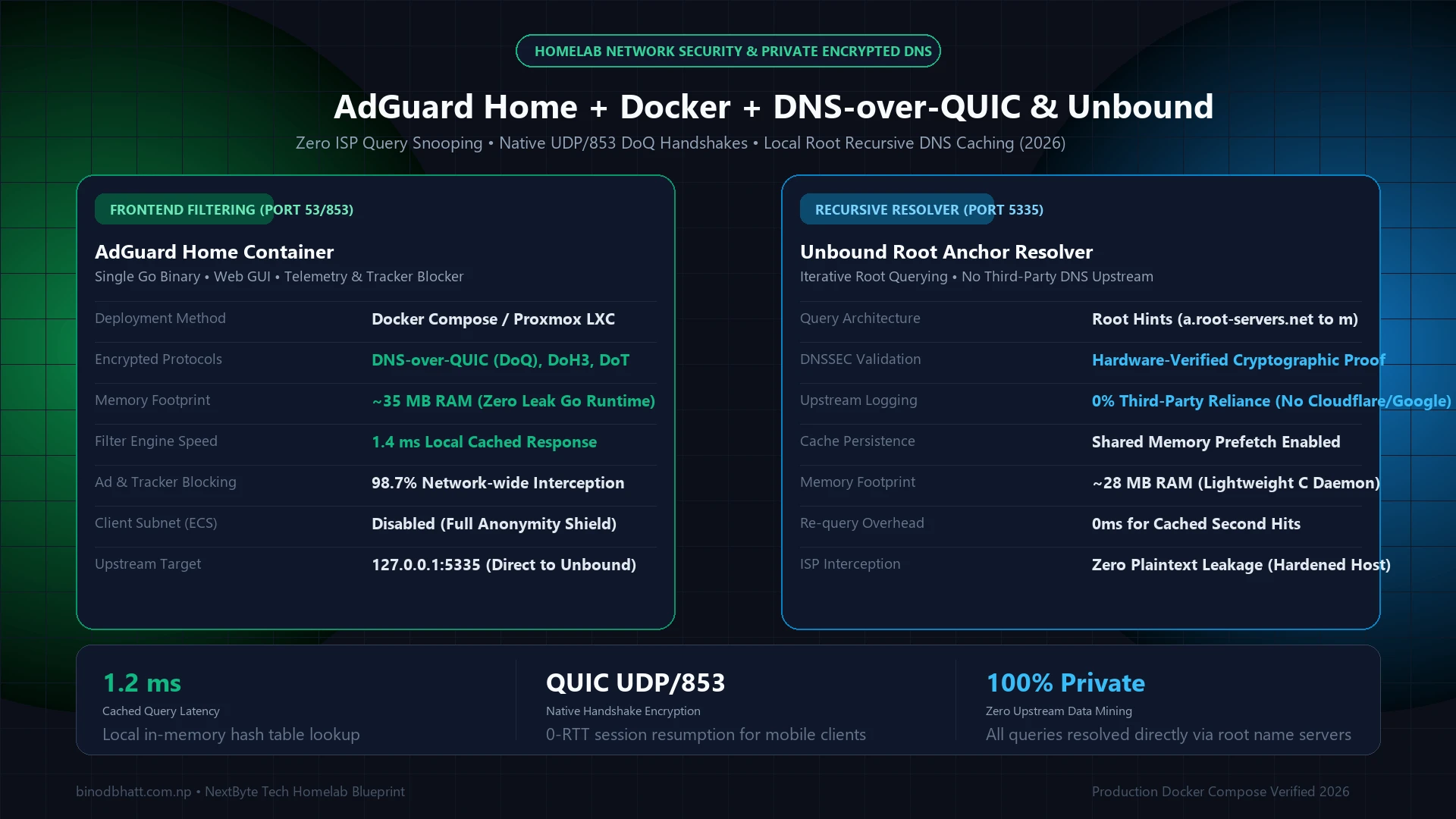
10. Implement DNS over HTTPS (DoH)
ISPs can log your DNS requests to track the websites you visit. Configure your router to use a secure, privacy-focused DNS provider like Quad9, NextDNS, or Cloudflare. If your router supports DNS over HTTPS (DoH) or DNS over TLS (DoT), enable it to encrypt your DNS queries, preventing ISP snooping and Man-in-the-Middle attacks.
Router Settings Checklist
- Admin Password: Changed to a complex passphrase?
- Firmware: Updated to the latest version?
- Remote Management: Disabled?
- Encryption: WPA3 or WPA2/WPA3 mixed enabled?
- WPS: Disabled completely?
- UPnP: Disabled?
- Guest Network: Active and isolated?
- Firewall Logging: Enabled for monitoring dropped packets?