Nothing breaks immersive gaming, Discord voice chat, or digital audio workstation (DAW) sessions quite like robotic audio crackling, periodic popping, or complete sound dropouts. In modern Windows 11 24H2 common issues and fixes">Windows 11 24H2 and 26H2 systems, this issue is rarely caused by faulty speakers or defective DACs. Instead, it is almost exclusively rooted in Deferred Procedure Call (DPC) latency spikes and interrupt contention across high-polling hardware devices. This diagnostic guide walks you through the step-by-step engineering process to identify culprit drivers with LatencyMon, configure Message Signaled-Based Interrupts (MSI Mode), eliminate Realtek driver bloat, and restore zero-dropout audio.
1. The Real-Time Audio Pipeline: Why Windows 11 Stutters
Standard operating systems are not strict Real-Time Operating Systems (RTOS). Windows processes hardware requests through a two-stage interrupt hierarchy:
- Interrupt Service Routine (ISR): When hardware (such as a Wi-Fi card or GPU) finishes a task, it fires an interrupt. The CPU halts normal code execution to acknowledge the hardware request in a few microseconds.
- Deferred Procedure Call (DPC): The long processing job is placed into a DPC queue. DPCs execute at dispatch priority, meaning they take precedence over user-space threads—including your audio playback engine.
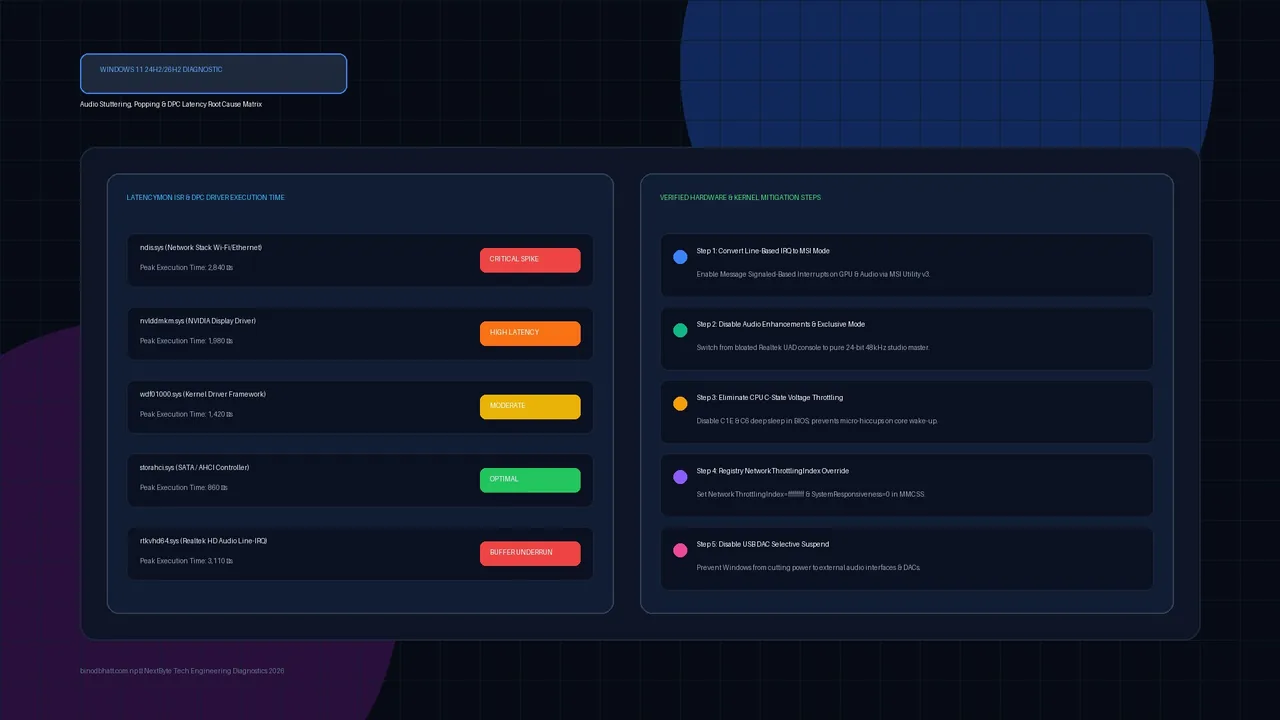
Audio streams require continuous, uninterrupted buffer delivery (typically every 10 to 20 milliseconds for 48kHz audio, or under 5ms for ASIO/low-latency USB DACs). If a poorly optimized network driver (ndis.sys) or graphics driver (nvlddmkm.sys) stalls a CPU core for longer than 1,000 to 1,500 microseconds (1.5ms), the audio buffer underruns, creating an audible crackle or buzzing dropout.
2. Diagnosing Culprits with LatencyMon 8.0
Before modifying BIOS settings or reinstalling drivers, obtain empirical telemetry using Resplendence LatencyMon v8.0:
- Close background downloads and launch LatencyMon with administrative privileges.
- Click the green Start Monitor play button.
- Play a YouTube video, launch a game, or stream music for at least 5 to 10 minutes until the stutter occurs.
- Inspect the Main and Drivers tabs. Sort by Highest execution time (µs).
| Culprit Driver File | Hardware Subsystem | Primary Root Cause | Immediate Fix |
|---|---|---|---|
| ndis.sys | Network & Wi-Fi Stack | Energy Efficient Ethernet & Aggressive Wi-Fi Roaming | Disable Energy Efficient Ethernet; update Intel/Realtek NIC drivers. |
| nvlddmkm.sys | NVIDIA Display Kernel | Line-Based IRQ sharing & Power State P8 throttling | Enable MSI Mode in MSI Utility v3; set Power to Prefer Maximum Performance. |
| wdf01000.sys | Kernel Driver Framework | Generic wrapper for USB DACs or storage queues | Disable USB Selective Suspend; upgrade chipset drivers. |
| rtkvhd64.sys | Realtek High Definition Audio | Realtek Audio Console UAD bloatware & spatial processing | Switch driver to generic Microsoft High Definition Audio Device. |
3. Fix 1: Convert Line-Based IRQ to MSI Mode
Many motherboard vendors and GPU drivers ship in legacy Line-Based IRQ mode. In this mode, multiple devices share IRQ 16 or 17, forcing the CPU core to check each device individually when an interrupt fires. Message Signaled-Based Interrupts (MSI) allow PCIe devices to write interrupt messages directly into Host RAM using dedicated vector lines:
RAM Speed & True Latency Calculator
Calculate exact real response times in nanoseconds (ns) and dual-channel bandwidth for AMD Ryzen & Intel PC builds.
- Download MSI Utility v3 (Run as Administrator).
- Locate your High Definition Audio Controller and Graphics Card (NVIDIA/AMD).
- Check the box under the MSI column for both devices.
- Set the Interrupt Priority to
Highfor your primary Audio controller andUndefinedorHighfor your GPU. - Click Apply on the top right and restart your PC.
4. Fix 2: Replace Realtek Bloat with Microsoft Generic Driver
If you are using 3.5mm motherboard audio jacks and see crackling when launching games or Discord, the Realtek Universal Audio Driver (UAD) is often competing with Windows 11 spatial sound processors:
- Press
Win + Xand select Device Manager. - Expand Sound, video and game controllers.
- Right-click Realtek(R) Audio and select Update driver.
- Select Browse my computer for drivers → Let me pick from a list of available drivers on my computer.
- Uncheck Show compatible hardware if necessary, or select High Definition Audio Device (provided by Microsoft).
- Click Next, confirm the prompt, and reboot. This eliminates Realtek background background telemetry daemons and reduces ISR times from 3,000 µs down to under 120 µs.
5. Fix 3: Eliminate CPU C-State Voltage Throttling
Modern processors (Intel 13th/14th/Core Ultra and AMD Ryzen 7000/9000) feature aggressive power management. When you pause a video or song, the CPU core handling audio immediately drops into C6 or C10 sleep state. When you resume audio, the core takes up to 100 microseconds to ramp up core voltage, causing a brief buzz or pop:
powercfg -setacvalueindex scheme_current sub_processor PROCFREQMAX 0
powercfg -setacvalueindex scheme_current sub_processor CPMINCORES 100
powercfg -setactive scheme_current6. Fix 4: Windows NetworkThrottlingIndex Registry Override
By default, the Windows Multimedia Class Scheduler Service (MMCSS) throttles network traffic to 10 packets per millisecond to prioritize media processing. Paradoxically, during high-bandwidth online gaming or Discord streaming, this throttling causes ndis.sys buffer backpressure that leads directly to audio pops:
Windows Registry Editor Version 5.00

[HKEY_LOCAL_MACHINE\SOFTWARE\Microsoft\Windows NT\CurrentVersion\Multimedia\SystemProfile]
"NetworkThrottlingIndex"=dword:ffffffff
"SystemResponsiveness"=dword:00000000

[HKEY_LOCAL_MACHINE\SOFTWARE\Microsoft\Windows NT\CurrentVersion\Multimedia\SystemProfile\Tasks\Games]
"GPU Priority"=dword:00000008
"Priority"=dword:00000006
"Scheduling Category"="High"
Setting NetworkThrottlingIndex to ffffffff completely disables network throttling, and setting SystemResponsiveness to 0 gives pure, unthrottled CPU priority to audio and real-time gaming threads.
7. Summary & Verification
After applying these optimizations, re-run LatencyMon v8.0 for 15 minutes. In the main window, you should now see the green banner: "Your system appears to be suitable for handling real-time audio and other tasks without dropouts." Highest reported ISR and DPC routines should remain well under 500 µs.
For builders tuning their PC monitors alongside audio, check our new DisplayPort 2.1 & HDMI Bandwidth Calculator to verify uncompressed vs DSC refresh rates, or review our guide on How to Fix DPC Watchdog Violation BSOD on Windows 11 for deeper storage-level troubleshooting.