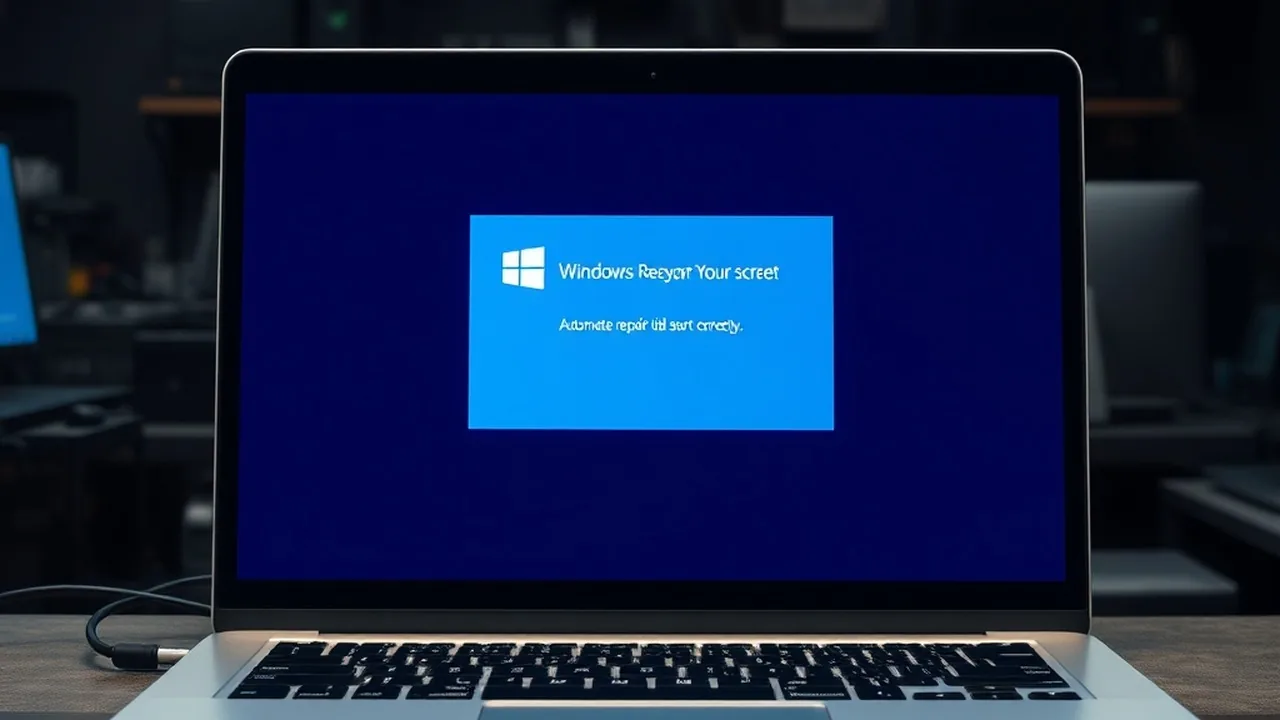
Few computing scenarios induce as much dread as powering on your PC only to be met with a black screen reading "Preparing Automatic Repair", followed by the blue recovery window stating "Automatic Repair couldn't repair your PC". When Windows 11 enters an infinite repair loop, standard rebooting fails because the operating system cannot load critical boot drivers or mount the master registry hive. This diagnostic guide outlines verified engineering steps to restore your system without wiping personal files.
⚠️ Initial Access: Reaching the Windows Recovery Environment (WinRE)
If your system cannot boot to the blue recovery screen automatically:
- Hold down the physical power button for 10 seconds to force a hard shutdown.
- Power on the PC; as soon as the motherboard logo appears, hold the power button down again to force shut down.
- Repeat this process 3 times. On the fourth boot, Windows will automatically launch the blue WinRE Advanced Options menu.
Method 1: Rebuilding the EFI Bootloader & BCD via Command Prompt
Corrupted Boot Configuration Data (BCD) is the leading cause of infinite repair cycles. In WinRE, navigate to Troubleshoot > Advanced Options > Command Prompt and execute the following sequence:
# 1. Scan and detect Windows installations
bootrec /fixmbr
Join NextByte Tech Community on Telegram
Get immediate notifications for new verified Windows fixes, open-source utilities, and tech tutorials.
2026 Windows 11 Optimization Cheat Sheet
Download our complete verified cheat sheet with 25+ PowerShell commands, debloating scripts, and service tweaks to get sub-10 second boot times.
bootrec /fixboot
bootrec /scanos
bootrec /rebuildbcd
# 2. If 'Access is denied' on fixboot, regenerate EFI boot files directly:
diskpart
list volume
# Identify your FAT32 EFI partition (usually ~100MB to 260MB, e.g., Volume 2)
select volume 2
assign letter=S
exit
bcdboot C:\Windows /s S: /f UEFI
This writes a pristine copy of UEFI bootloader files directly from your Windows folder to the hidden EFI system partition, resolving corrupted partition references immediately.
Method 2: Performing Offline System File Checker & DISM Servicing
If a corrupted kernel driver (such as ntoskrnl.exe or storage drivers) is halting boot progression, standard sfc /scannow fails because it targets the WinRE RAM disk (X:). You must instruct SFC to service the offline Windows directory on drive C:
sfc /scannow /offbootdir=C:\ /offwindir=C:\Windows
chkdsk C: /f /r
chkdsk /f /r locates bad disk sectors, recovers readable data, and repairs corrupted master file table (MFT) records.
Method 3: Disable Early Launch Anti-Malware (ELAM)
Third-party antivirus utilities or unsigned storage drivers frequently trigger false-positive security blocks during early boot phases:
- From WinRE, select Troubleshoot > Advanced Options > Startup Settings > Restart.
- Upon reboot, press key 8 or F8 on your keyboard to select "Disable early launch anti-malware protection".
- Windows will bypass the driver security check and complete initialization, allowing you to update or remove the problematic driver inside the desktop.
Diagnostic Verification & PowerShell Automation Script
To ensure your Windows operating system maintains long-term registry and file integrity after applying these adjustments, execute the following non-destructive verification sequence in an elevated administrative terminal:
# Run Component Store Health Check and System File Repair
DISM /Online /Cleanup-Image /RestoreHealth
sfc /scannow

# Audit Active Boot & Service Configuration
Get-Service | Where-Object {$_.StartType -eq 'Automatic' -and $_.Status -ne 'Running'} | Select-Object Name, DisplayName
Executing these native diagnostic routines validates system image health against trusted Windows Component Store hashes, guaranteeing that underlying DLL libraries remain uncorrupted.
Frequently Asked Questions (Troubleshooting FAQ)
Will applying these fixes affect my personal files or application settings?
No. All targeted adjustments operate on user-space telemetry flags, background services, and startup routines without altering personal user profiles or document partitions.
How can I revert these changes if a future Windows cumulative update overwrites them?
Windows Update occasionally restores default telemetry registries. Re-running the provided PowerShell verification script restores your optimized state in seconds.