
Few things are as frustrating as paying for a 500 Mbps or 1 Gbps ultra-fast broadband connection only to watch a 90 GB Steam game update download at a sluggish 12 MB/s. Steam's download mechanism is fundamentally different from a standard web browser: it simultaneously downloads heavily compressed data packets, decompresses them using your CPU, and writes thousands of fragmented files to your storage drive in real time.
If any single component—your CDN server, network throttling settings, CPU decompression queue, or Windows 11 for SSD performance">SSD write cache—hits a ceiling, your download speed flatlines. Here are the 5 verified adjustments to unlock maximum throughput on Steam in 2026.
1. Clarifying Megabits (Mbps) vs Megabytes (MB/s)
Before troubleshooting, ensure you aren't misreading Steam's download speed indicator:
- Internet Service Providers (ISPs) advertise speeds in Megabits per second (Mbps).
- Steam traditionally measures downloads in Megabytes per second (MB/s).
- Because there are 8 bits in 1 byte, a 500 Mbps connection maxes out at 62.5 MB/s, and a 1 Gbps (1000 Mbps) line maxes out at 125 MB/s.
- To see your ISP speed directly inside Steam: Go to Steam → Settings → Downloads and toggle "Display download rates in bits per second".
2. Switch to an Uncongested Download Region
Steam automatically assigns you to the geographically closest content server. However, during major game release days or peak evening hours, that local CDN node can be overwhelmed with traffic:
- Open Steam → click Steam in the top-left menu → Settings.
- Select Downloads in the left pane.
- Under Download Region, select a nearby alternative city or neighboring region with high-bandwidth infrastructure.
- Restart Steam and test downloading a game. Often switching to an adjacent node immediately doubles your throughput.
3. Clear Corrupted Steam Download Cache
Over time, aborted downloads and partial chunks accumulate in Steam's temporary staging directory, causing packet re-transmission loops:
Game & File Download Time Calculator
Calculate exact ETA for GTA 6, Warzone, Steam games, and 4K media across 30 Mbps to 1 Gbps fiber plans with 10% TCP/IP real-world overhead.
- In Steam → Settings → Downloads, find "Clear Download Cache".
- Click Clear Cache and confirm. Steam will log you out and restart.
- Log back in. Steam will verify clean cache manifests and resume downloads with fresh TCP sockets.
4. Eliminate Disk Write Bottlenecks on Windows
Look at your Steam download graph: Is the green "Disk" line dropping to 0 MB/s while the blue "Network" line stalls? This indicates your storage drive cannot write and unpack game assets fast enough:
- Never install modern games on mechanical HDDs: Slow 5400/7200 RPM hard drives cannot keep pace with 100+ Mbps decompressed game files. Always install Steam games on an NVMe or SATA SSD.
- Check Windows Write Caching: Open Device Manager → Disk drives → right-click your SSD → Properties → Policies → Ensure "Enable write caching on the device" is checked.
- Exclude Steam from Windows Defender Scans: Windows Defender scanning every freshly written game asset can saturate your CPU. Add your Steam library folder (e.g.
D:\SteamLibrary) to Windows Defender exclusions.
Calculate Your Exact File Download Duration
Downloading a 100GB game or large media archive? Input your internet plan speed to see exact download times accounting for protocol overhead and real-world Wi-Fi throttling. Open Download Time Calculator →
5. Disable Windows Network Bandwidth Throttling
Windows includes a legacy multimedia network throttling algorithm that artificially limits non-multimedia network packets:
- Press Win + R, type
regedit, and hit Enter. - Navigate to:
HKEY_LOCAL_MACHINE\SOFTWARE\Microsoft\Windows NT\CurrentVersion\Multimedia\SystemProfile - Double-click NetworkThrottlingIndex and set its value to
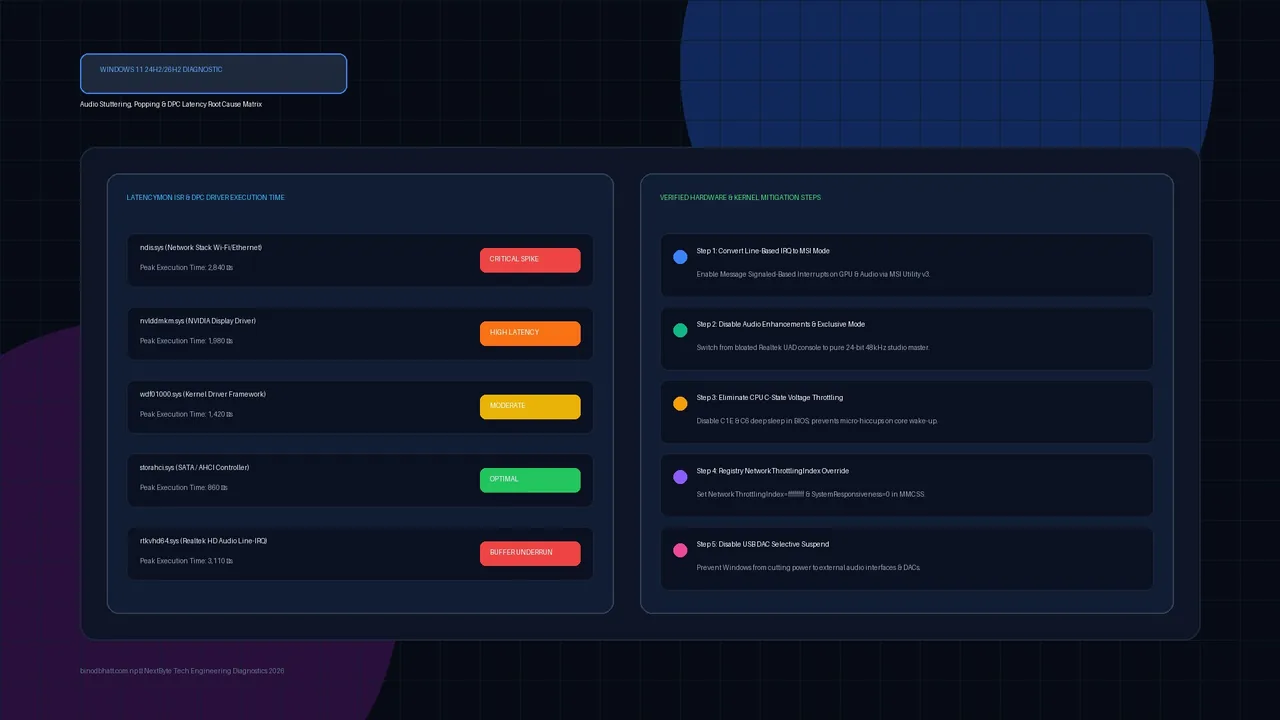
ffffffff(hexadecimal). This permanently disables background network packet throttling.